Why a Dedicated Sending Domain Matters
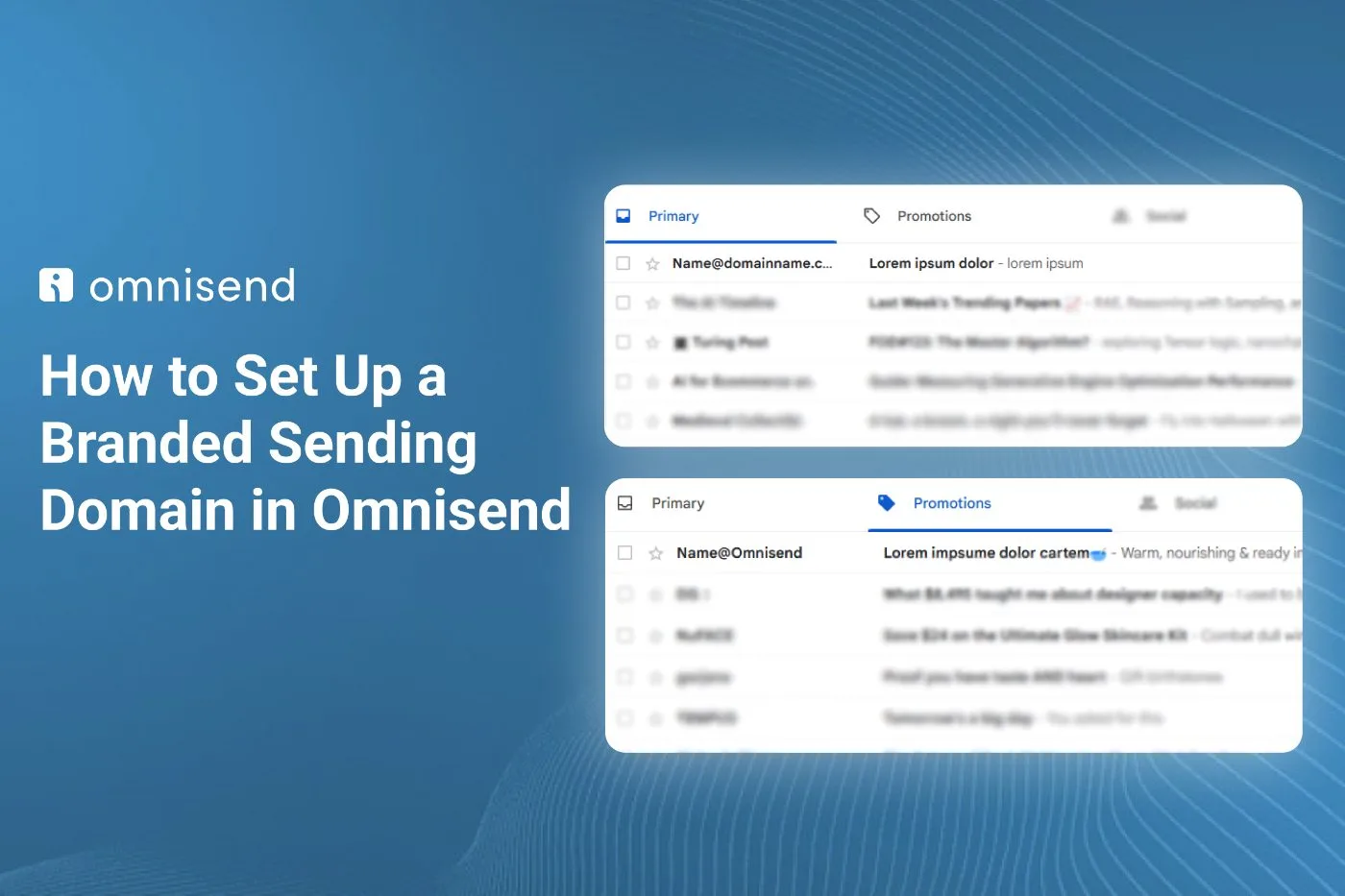
If you send marketing emails from a shared default Klaviyo domain, mailbox providers like Gmail and Yahoo view you with suspicion. Shared domain sending leaves your brand reputation tangled with thousands of other senders. That is a mistake.
A branded sending domain (or dedicated sender ID) links your Klaviyo sending infrastructure directly to your own root domain. This builds independent domain reputation, improves inbox placement, and ensures compliance with modern authentication standards including DKIM and SPF.
Starting in Klaviyo Account Settings
The setup starts inside your Klaviyo dashboard. Head to the bottom left corner, click Settings, and navigate to Domains under the General tab.
Click Add domain to begin. Klaviyo will prompt you to select the type of emails you plan to send. Choose Marketing. Even if you plan to send transactional receipts or updates down the track, selecting marketing is the right choice here because you can flag individual flows as transactional later on.
Next, confirm your root domain. Klaviyo automatically pulls this from the website URL listed under your account settings. If your root domain looks incorrect, jump over to Settings > Account and update your website URL first before proceeding.
Configuring Your Sending Prefix and Domain Type
Your sending prefix defines the mailbox name that sits in front of your domain. If you send marketing emails from hello@yourbrand.com, enter hello as the prefix. If you send from a personal name like gavin@inbox.co.nz, you simply enter gavin.
- Do not include the "@" symbol or your domain name in this field.
- Always use a prefix tied to an active, monitored inbox so you can receive replies.
- Common prefixes include
hello,info, orteam.
When Klaviyo asks for the routing method, select Dynamic. Dynamic routing helps future-proof your deliverability by adapting to sending infrastructure changes automatically. Next, choose manual setup when asked how you want to connect your DNS provider.
Adding DNS Records to Your Domain Host
Select your domain provider from the dropdown menu (such as Cloudflare, GoDaddy, Shopify, Ionos, or Squarespace). If yours is not listed, select Other. Klaviyo will generate roughly 3 to 5 DNS records that you must paste into your domain host.
Log in to your domain registrar, find your domain management dashboard, and open your DNS settings. You will need to create new records matching what Klaviyo generated:
- NS records: Copy the host name and the provided values exactly as shown.
- TXT records: Add the corresponding verification strings.
- TTL: Leave the Time to Live (TTL) set to default or automatic.
Take your time on this step. A single missing character or trailing whitespace in a DNS value will break the authentication handshake.
Verifying the Records and Propagation Times
Once you save every record in your DNS manager, return to Klaviyo and click Verify. Klaviyo will check your DNS records to confirm they match the required values.
DNS propagation can take anywhere from 5 minutes to roughly 48 hours depending on your registrar. If the verification fails immediately, do not panic. Give it a few hours for the global DNS caches to update, then hit verify again. Once verified, your account will send 100% of its campaigns and flows through your branded domain.
Final Thoughts
Setting up a branded sending domain is not optional if you want consistent deliverability. It separates your brand from bad senders and gives you total ownership over your sender reputation. Spend the 15 minutes to set it up right.
Get Your Klaviyo Infrastructure Sorted
If you want your domain authentication, tracking snippets, and account structure configured properly from day one, check out our Klaviyo account setup service and let the team handle the technical heavy lifting for you.